·10 min read
Design systems that earn their keep
A design system isn't a Figma flex. It's how you ship faster and look like one company instead of five. How I build ones that pay for themselves.
How I built prabir.dev for design and speed: 98 mobile and 100 desktop PageSpeed results, practical Next.js lessons, code examples and a launch checklist.
 Prabir Singh·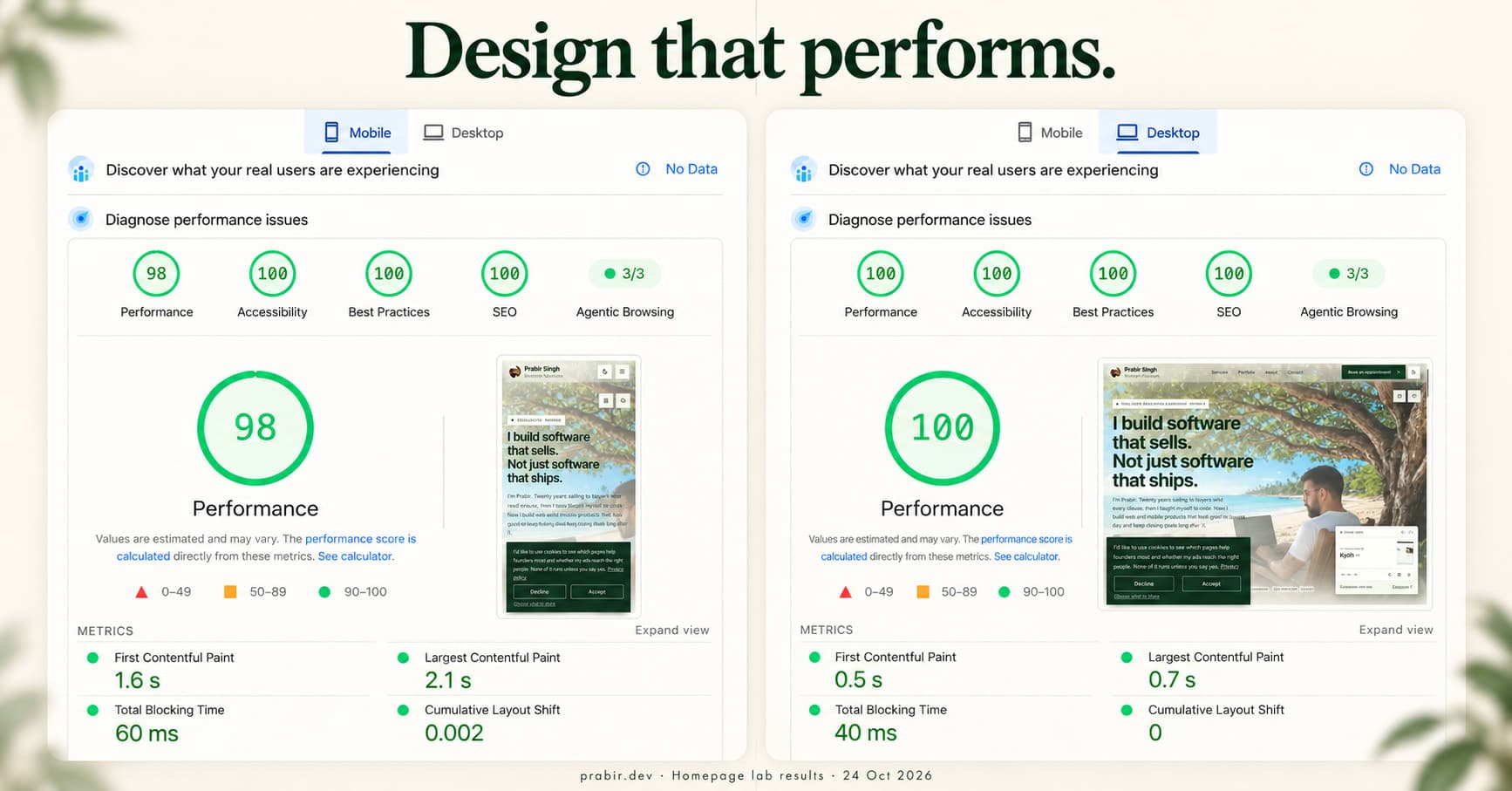
A website can look wonderful on a designer’s laptop and still make someone on a phone wait for the privilege of seeing it.
That is an expensive first impression. You have already asked for their attention. Asking them to admire a loading screen as well feels a little ambitious.
On 24 October 2026, the PageSpeed Insights reports I captured for the prabir.dev homepage showed 98 for mobile performance and 100 for desktop performance. Both also showed 100 for accessibility, best practices and SEO.
The site still has its visual personality: a cinematic hero, animated typography, project interactions and carefully considered motion. The useful part of this story is how to give those details room without making the essential experience wait behind them.
This is a practical account of the work behind this portfolio. If you build websites, you’ll find decisions and examples you can apply. If you’re hiring someone to build yours, you’ll find better questions to ask than “Will it look modern?”
The principle I keep coming back to: deliver the useful page first, then add the experience around it.
These are the values visible in the two homepage reports, not averages across the site:
| Measurement | Mobile | Desktop |
|---|---|---|
| Performance | 98 / 100 | 100 / 100 |
| Accessibility | 100 / 100 | 100 / 100 |
| Best practices | 100 / 100 | 100 / 100 |
| SEO | 100 / 100 | 100 / 100 |
| First Contentful Paint | 1.6 seconds | 0.5 seconds |
| Largest Contentful Paint | 2.1 seconds | 0.7 seconds |
| Total Blocking Time | 60 milliseconds | 40 milliseconds |
| Cumulative Layout Shift | 0.002 | 0 |
The featured image combines the two reports into an AI-assisted editorial composite. For the actual evidence, open the untouched mobile report screenshot and desktop report screenshot.
The screenshots show “No Data” in the real-user section. That matters. These are Lighthouse lab results generated by PageSpeed Insights, not a completed real-user Core Web Vitals assessment. PageSpeed separates controlled lab diagnostics from field data collected from real visits. Google’s explanation of PageSpeed Insights.
I’m also auditing other page types separately. A strong homepage does not automatically make every article, service page or contact flow fast. The figures above apply to the homepage runs shown here.
A test result belongs to a URL, a version of a page and a set of testing conditions. Network routing, browser versions and the machine running the test can change the result. Google explicitly describes Lighthouse performance as a distribution of scores rather than one permanent number. How Lighthouse performance scoring works.
For that reason, I save the report and inspect the underlying timings. “The main content appeared in 2.1 seconds in this mobile test” tells us more than “the circle is green.”
Neither figure establishes a conversion increase, a revenue gain or a ranking improvement. Those would need their own evidence.
The report is technical. The experience it describes is familiar.
First Contentful Paint, or FCP, is the first visible content. It answers the visitor’s earliest question: has anything arrived?
Largest Contentful Paint, or LCP, tracks when the largest visible image or text block appears. It is often a better signal of whether the page feels meaningfully ready. A large heading can be the LCP element; it is not always the hero image. Google’s LCP optimization guide.
Total Blocking Time, or TBT, describes blocking work during the lab loading test. Low TBT is encouraging, but it does not prove that every later click will be responsive. For real interactions, the relevant Core Web Vital is Interaction to Next Paint, or INP, which looks at the responsiveness of qualifying interactions over the visit. Understanding and improving INP.
Cumulative Layout Shift, or CLS, measures unexpected layout movement. Think of the button that relocates just as you tap it. Nobody requested that particular game.
The homepage’s mobile CLS of 0.002 shows very little layout movement in that recorded load. It does not mean I can stop checking what happens when the menu opens, an image fails or a form returns an error.
An earlier local mobile Lighthouse audit of this homepage recorded 52 performance, with 6.7-second LCP and about 510 milliseconds of TBT. That was a separate CLI test, not the same PageSpeed Insights run as the screenshots above. It gave me a useful baseline for finding problems; it would be misleading to present the two tools as a perfectly controlled experiment.
Several changes followed. I did not isolate every change in a formal experiment, so I’m not assigning an invented percentage improvement to each one.
A root-level loading boundary was putting already prepared static content behind a reveal step. The page could have useful HTML available while still waiting for JavaScript to show it.
I removed that blanket skeleton. Navigation still has progress feedback, and components such as the booking calendar retain their own loading and error states.
The distinction is practical: a calendar waiting for availability needs a loading state. An entire article that is already ready to read usually does not need to wait with it.
Try this: inspect the first HTML response and the performance trace. Is the main content there and visible? Or does a script, a loading screen or an animation have to finish before it can appear?
This is one reason I like thinking about React Server Components as a division of responsibilities. Prepare the readable material where it makes sense; reserve browser work for things that actually need the browser.
The header’s small settling movement and the hero video’s crossfade did not each need an animation library on the startup path. Those effects now use CSS and a small amount of browser logic. The navigation progress indicator uses the Web Animations API.
Richer effects still exist. The important change was choosing the right mechanism for each job.
This is not a rule that animation libraries are bad. A coordinated sequence or complex interactive scene may justify one. A short opacity transition probably does not need the same machinery.
Try this: list the effects visible before the first scroll. For each, write down what the visitor gains and what must load to make it happen. That tiny inventory can reveal a surprisingly large dependency chain.
The booking calendar now starts loading its availability and calendar interface near the viewport. Its introduction and permanent appointment anchor remain available first.
The scrolling technology bands and rotating contact badge also load as nearby enhancements. Static text or reserved dimensions preserve the initial layout.
There is a balance here. Loading an interface only after someone clicks can create a frustrating pause. Loading it when they approach the section can make it ready without charging every visitor for it at the start. Next.js supports splitting client components and libraries so they can load when needed. Official Next.js lazy-loading guide.
Try this: classify page features as “needed immediately,” “needed near this section,” and “needed after an action.” Start with the largest optional component, not the smallest icon.
A logo link to the homepage seems harmless. In this site, its automatic prefetching could bring homepage resources into another page’s loading work.
I disabled that prefetch, alongside selected other links where the early work was not helpful. Visitors can still navigate normally.
Prefetching is a tradeoff: spend resources now to make a likely next step faster. That can be worthwhile for an important journey. It is less helpful when every visible link competes with the content someone came to read.
Try this: open the Network panel on an article before clicking anything. If resources for other routes are arriving, check which links requested them and whether that prediction is useful.
The GitHub contribution comparison originally had room to do unnecessary rendering work. The responsive version now renders the appropriate calendar for the current viewport: a shorter view on phones and the larger year-to-date view on desktop.
Its cached data is requested near the section. The public/private comparison remains, while the phone avoids carrying both calendar presentations at once.
Try this: look beyond download sizes. Two large interfaces hidden behind CSS breakpoints can still mean extra DOM, rendering and hydration work. “Hidden” and “free” are different words for a reason.
The wider audit exposed an operational problem that a homepage screenshot did not reveal: a 128 MB temporary cache was full. Generated page entries had used the available space, and server logs showed ENOSPC errors when Next.js tried to save optimized images.
The images still appeared, but repeat requests kept doing expensive work. A cache that cannot write is mostly a very optimistic folder name.
I moved the runtime cache to disk, separated reusable image variants from release-specific page entries, and set a 500 MB image-cache limit. A direct diagnostic request then changed from a miss to hits on repeat requests. That confirms the caching behaviour; it does not establish a universal speed improvement for every visitor.
Try this: check cache response headers, write errors, available space and permissions together. Also test after a deployment, when a temporary container filesystem may have disappeared. For a self-hosted Next.js app, read the deployment and caching guidance and the image disk-cache limit documentation. Choose storage and limits for your workload; copying my number is not capacity planning.
Here is an illustrative example, not a copy of this portfolio’s production code. Imagine a case study with a useful written explanation and an optional interactive diagram.
Keep the explanation in the page. Load the interactive component shortly before its reserved area becomes visible:
"use client";

import dynamic from "next/dynamic";
import { useEffect, useRef, useState } from "react";

const InteractiveDiagram = dynamic(
  () => import("./interactive-diagram"),
  { ssr: false, loading: () => <p>Preparing the interactive view…</p> }
);

export function OptionalDiagram() {
  const region = useRef<HTMLDivElement>(null);
  const [nearby, setNearby] = useState(false);

  useEffect(() => {
    const element = region.current;
    if (!element) return;

    const observer = new IntersectionObserver(([entry]) => {
      if (!entry.isIntersecting) return;
      setNearby(true);
      observer.disconnect();
    }, { rootMargin: "240px" });

    observer.observe(element);
    return () => observer.disconnect();
  }, []);

  return (
    <div ref={region} style={{ minHeight: 280 }}>
      {nearby
        ? <InteractiveDiagram />
        : <p>The written explanation above covers the full process.</p>}
    </div>
  );
}
The 240px margin starts the work before the visitor reaches the region. It is a starting point to test, not a magic number. The reserved height should match the real component closely enough to avoid a jump.
There are three important limits to this example:
If the enhancement is tiny, this extra machinery may cost more complexity than it saves. Measure before adopting it everywhere.
Start with the symptom, then use the report to choose the investigation. Randomly adding lazy and preload attributes is a surprisingly effective way to create a different problem.
| What you notice | Inspect first | A useful next step | Avoid this shortcut |
|---|---|---|---|
| The page takes time to show anything | HTML response and render-blocking resources | Check server response, styles and visible server-rendered content | Blaming the hero image before identifying the delay |
| Main content arrives late | The actual LCP element and its timing breakdown | Separate discovery, download and render delays | Compressing an already tiny image while a reveal script blocks it |
| Taps feel delayed | Main-thread tasks and an interaction trace | Find expensive handlers, rendering or third-party work | Assuming a good loading score proves every interaction is fast |
| Content jumps | Layout-shift records | Reserve image space and examine late inserts | Moving the problem below the fold |
| An article fetches unrelated resources | Network initiators and route prefetches | Review speculative downloads | Disabling every useful prefetch without checking navigation |
| The desktop looks fine but mobile struggles | The mobile layout and its startup work | Test the smaller device experience independently | Merely shrinking the desktop design |
For an image-related LCP problem, examine the full sequence. The browser must discover the resource, request it, receive it and render the element. Improving one stage does not remove a bottleneck in another. How to break down LCP.
Also check the response that reaches the browser. A server setting can look sensible while a reverse proxy changes the actual compression or caching behaviour. I investigated that in this project too. I’m not counting that experiment as a proven improvement in the reported result; the browser measurements have to support the claim.
A performance pass should preserve the reasons someone remembers the website.
For this portfolio, that includes the personality of the hero, the typography, the project storytelling and the small interactions that make navigation feel considered. The work is deciding which parts deserve early resources and which can wait.
My working rules are:
These decisions are easier when the site has a coherent design system. Reusing a clear set of behaviours beats solving every button, card and loading state from scratch.
No. The SEO score is useful evidence about the checks performed by that audit. It is not a ranking forecast.
Google uses Core Web Vitals in its ranking systems, but good results do not guarantee top positions. Relevance, helpful content and the wider page experience still matter. Google’s guidance on page experience.
For this article, sensible SEO means a descriptive title, readable content, a canonical URL, relevant internal links, accurate metadata and a share image that represents the actual subject. It also means answering the question that brought someone here.
The same care applies to 100 accessibility. Lighthouse’s automated score does not include every manual accessibility check. A green report does not replace keyboard testing, careful focus behaviour or checking whether the interface makes sense. What the Lighthouse accessibility score covers.
And 100 best practices is not a security certificate. Authentication, authorization, business logic and operational security require their own review.
This portfolio is my own project, not a client result I’m borrowing. It shows how I approach the combined job of design and development.
For a founder, the useful output is a site that communicates the offer, works on a phone and helps someone take the next step. The engineering should support those goals rather than becoming an invisible collection of assumptions.
These are the deliverables I discuss when scoping that work:
| Part of the work | What it should give you |
|---|---|
| Design and content structure | Clear hierarchy, readable copy and a path to the important action |
| Responsive implementation | An experience checked on mobile and desktop, including navigation and forms |
| Performance work | Saved measurements, identified bottlenecks and changes tested on the deployed build |
| Search foundations | Crawlable content, relevant metadata, canonical URLs and useful internal links |
| Interaction quality | Visible focus, meaningful loading states, recovery from errors and reduced-motion behaviour |
| Handover | An explanation of how the site works, what was verified and what needs ongoing attention |
The exact scope belongs in the project agreement. A portfolio, a content-heavy publication and a logged-in application have different constraints; I would not promise identical scores before seeing the work.
If you want the broader thinking behind this approach, read Build for the Buyer, Not Just the User. A technically impressive page still has to help a person make a decision.
Use this before celebrating the score:
A useful review note can be as simple as this:
URL and release:
Test date and tool version:
Mobile scores across three runs:
Desktop scores across three runs:
LCP element and timing:
Layout shifts observed:
Main interaction tested:
Slow-network or failure behaviour:
Known limitations and next action:
That note is more actionable than a folder called final-final-really-fast.png.
“Can you show a report from the deployed page?” A local screenshot is a useful development artifact, but the live delivery path matters.
“Which pages and interactions did you test?” One fast landing page says little about a slow booking form three clicks away.
“What happens if a third-party service is slow?” Good answers explain loading, recovery and what remains usable.
“What did you trade off?” Every meaningful optimization has context. A thoughtful answer is more reassuring than “we just optimized everything.”
“What will I be able to maintain?” You should know how to update content, where integrations live and which changes deserve another performance check.
You do not need to become a browser engineer to ask for evidence. You need a clear explanation of what was built and how it was checked.
It is a useful lab target for many public-facing sites. Whether a particular page can sustain it depends on its content, integrations and testing conditions. Agree on the pages, test method and functionality before making the number a delivery promise.
Start by removing unnecessary startup work. Small CSS effects and well-timed enhancements can preserve the design. Measure the expensive interactions individually before removing personality from the entire site.
They are homepage lab results. The supplied reports have no real-user data, so they do not establish a field pass. Field assessment uses real-user LCP, INP and CLS data rather than the single Lighthouse performance score. Google’s Core Web Vitals overview.
You may get different numbers. Test the live homepage in PageSpeed Insights and save the current report. The screenshots document the runs captured on 24 October 2026.
I’m pleased with these results because the homepage kept its character while the loading work became more deliberate.
The lesson is available without hiring me: find the real bottleneck, make useful content available early, give enhancements a sensible loading point and verify the deployed experience.
If you’re planning a site, use the checklist above to write a short brief: who it is for, what visitors need to do, and which pages matter most. If you’d like help turning that into a designed and working product, tell me about the project. Bring the awkward questions. They are usually the useful ones.
Was this useful?
No account needed. One like per browser; click again to undo.
Prabir Singh
Full-stack engineer in Mumbai. Twenty years in sales taught me why people buy; seven years of code taught me how to build what they'll pay for. I still read error messages the way I once read objections: as the most honest feedback of the day. More about me or start a project.
A design system isn't a Figma flex. It's how you ship faster and look like one company instead of five. How I build ones that pay for themselves.
You don't need a 40-page brand book. You need to look like the company you're becoming. The founder's version of branding that actually moves numbers.
Node2Shell explained: the Brotli flaw, fixed Node.js versions, other October 21 security fixes, and practical checks for containers, workers and hosting.